Map Editor: customize VIETMAP maps
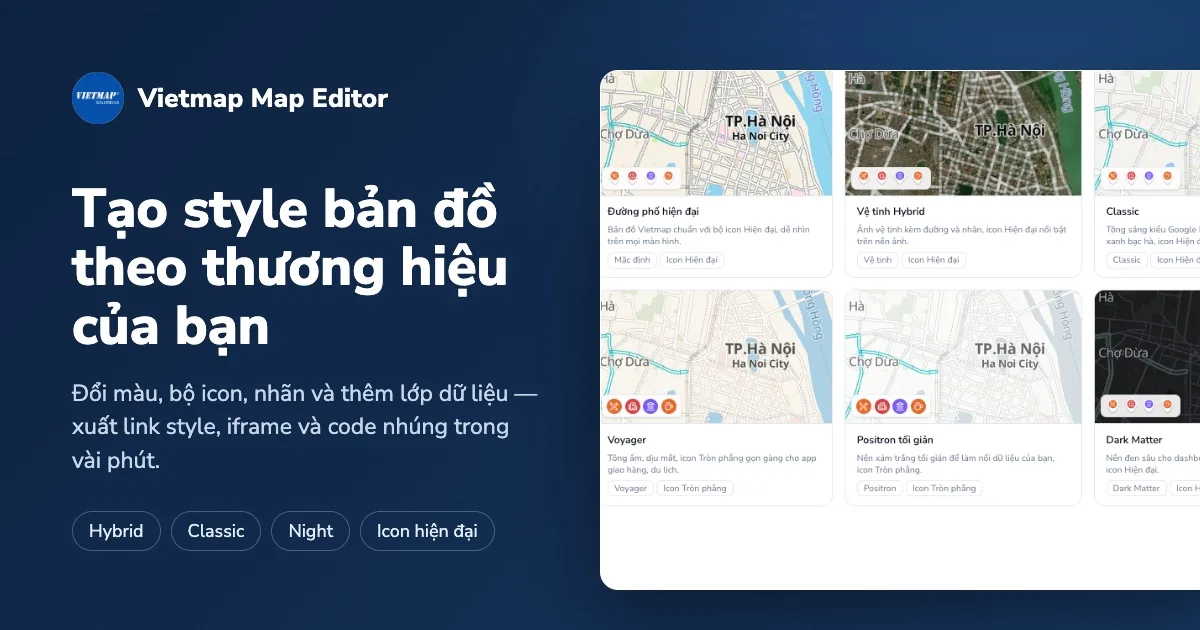
Map Editor is a browser tool for customizing VIETMAP maps. You change the colors of roads, water and parks, swap the place icon set and fonts, choose Vietnamese or English labels, then embed the map on your website or use it in a web or mobile app.
Open Map Editor
tools.vietmap.vn/map-editor. Sign in with your VIETMAP account; if you don't have one, register here.
Start a map from a template
The Suggested templates section on the start page has 8 map templates. Pick one to open it in the editor.
| Template | Description |
|---|---|
| Modern streets | VIETMAP's standard street map with Modern icons. |
| Classic | Light tones, blue water, mint-green parks. |
| Night | Navy background, warm road colors. |
| Voyager | Warm tones with Flat circle icons, suited to delivery and travel apps. |
| Minimal Positron | Light grey background for displaying your own data. |
| Dark Matter | Black background for dashboards and monitoring screens. |
| Navigation | High-contrast dark tones with large Raised pin icons. |
| Hybrid satellite | Satellite imagery with street and place names. |
Dark Matter, Night and Navigation are the three dark map templates.
Change map colors
In Simple mode, the Templates & palettes section has 9 built-in palettes; applying one recolors the whole map.
To recolor one part of the map, click its color swatch in the list: motorways, trunk roads, main roads, secondary roads, minor roads, railways, water, sea, parks, buildings, residential areas. Each part has a Reset to original color button.
Sovereignty boundaries can only be changed to another solid color. They cannot be hidden or faded.
Change place icons
The Icon sets & place labels section has 4 icon sets: Default, Modern, Flat circle and Raised pin. The selected set applies to every place on the map.
Icon colors are set per place category: food, health, education, finance, shopping, accommodation, entertainment, religion, transport and government.
Show or hide place categories
Each place category has its own show/hide toggle. Hide the categories you don't need to keep the map uncluttered.
POI density sets the zoom level at which places start to appear: More shows them earlier as you zoom in, Fewer shows them later.
Map labels and English names
Font, size, text color and outline for place names are set in Icon sets & place labels. Sign in to use additional fonts from Google Fonts.
The Language setting has three options: Default (Vietnamese), English and Bilingual. Provinces, administrative units, rivers and boundaries have English names; place and street names stay in Vietnamese.
Add the traffic layer
Turn on Traffic to show real-time congestion on the map. The traffic layer is saved with the map, so websites and apps using it don't need to add it in code.
Add your own data to the map
Add data layer takes the points, lines and areas you have uploaded to Branch Locator & Management (Local Store) and draws them on the map. Excel imports are done in MapZone; once imported, the data layer appears in the list, ready to add.
Check colors for color blindness
The Color-blind preview button in the toolbar shows the map as people with color vision deficiency see it, so you can check that your colors remain distinguishable.
Advanced mode
Advanced mode is for fine-tuning individual map layers: drawing order, display conditions, sizes by zoom level. A layer you are editing in Simple mode opens in Advanced with Edit details (Advanced).
Save and update your map
Drafts save automatically 30 seconds after your last edit; Ctrl+Z undoes.
The first time, press Save to cloud to store the map in your account. After that the button becomes Update. Websites and apps using the map only receive changes when you press Update, so you can experiment without affecting what is live. To keep the old version, use Save as new style.
Compare styles shows two maps side by side so you can check them before updating.
Embed a map on your website
Open Share & embed for a saved map, choose the Iframe tab, copy the code and paste it into your web page or CMS. Turn on Keep the current map view to make the embedded map open at the area and zoom you are looking at.
Use the map in a web or mobile app
Share & embed also has ready-made code with your map link filled in for Web (HTML), Web (npm), React Native, Flutter, Android (Kotlin), iOS (Swift) and cURL. Copy AI prompt produces an integration request to paste into Claude, Cursor or another AI assistant.
Projects already using the VIETMAP SDK only need to swap the style link:
const map = new vietmapgl.Map({
  container: "map",
  style: STYLE_URL, // style link copied from Share & embed
  center: [106.7009, 10.7769],
  zoom: 12,
});
The style link contains your map API key. Restrict the key's allowed domains and request volume in Manage API keys.
Revoke or pause a map link
My styles lists your saved maps. For each map:
- New public link issues a new link. The old link, and every iframe and code snippet using it, stops working; replace it on your website and in your app.
- Disable public link pauses the map everywhere it is used until you turn it back on.
- Renaming a map or editing its description does not change its link.