Payment & Billing
This guide walks you through the steps to top up your VietMap Console account balance and manage your billing information.
Top Up Your Balance
1. Select a Plan
Navigate to the Payments section in the VietMap Console. You will see available top-up plans with different benefits and credit amounts.
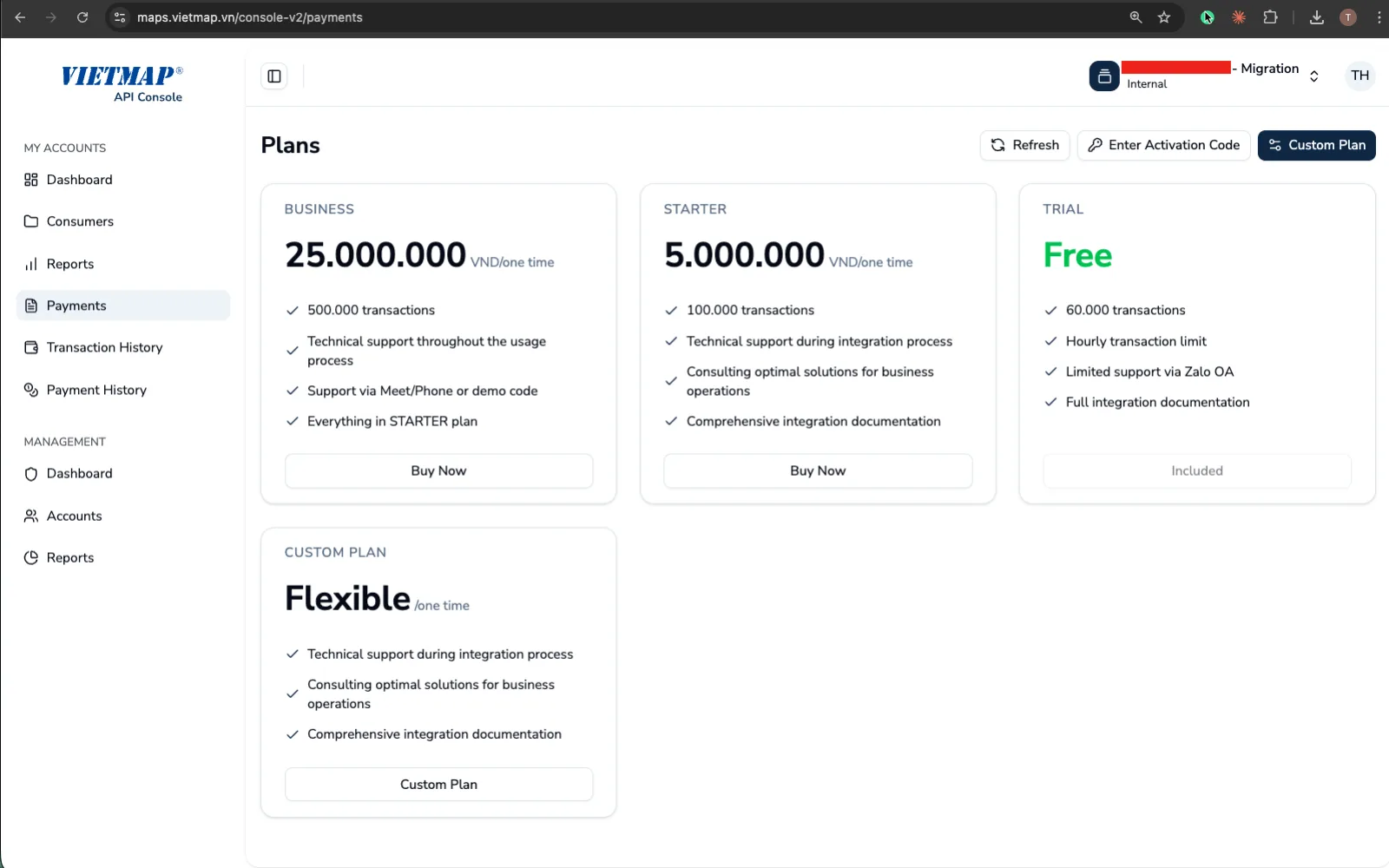
Choose the plan that fits your usage needs and click Buy Now to proceed.
We also provide Flexible Top-Up options where you can enter a custom amount (or custom credits) to add to your balance. This is ideal if you want to top up with a specific budget in mind.
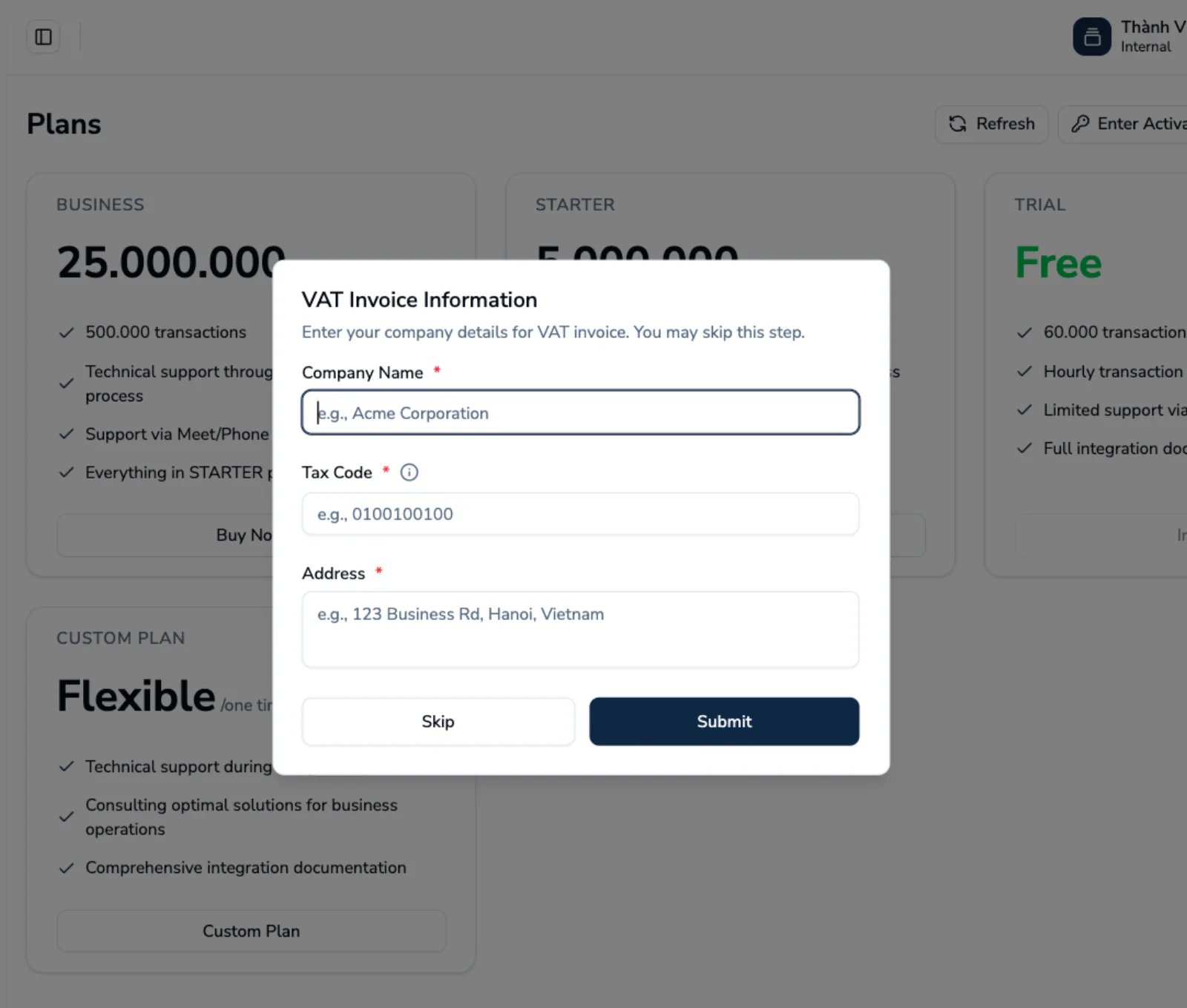
2. Check/Add VAT Information
We provide VAT invoices for all payments. If your organization requires a VAT invoice, make sure to fill in correct your billing information before completing the payment.
If you don't need an invoice, you can skip this step by selecting Skip button to continue.
3. Select Payment Method
On the checkout screen, select your preferred bank or payment provider from the list. This is the list received bank from our payment gateway partner, not your personal bank list, so you can select any bank in this list for processing your payment.
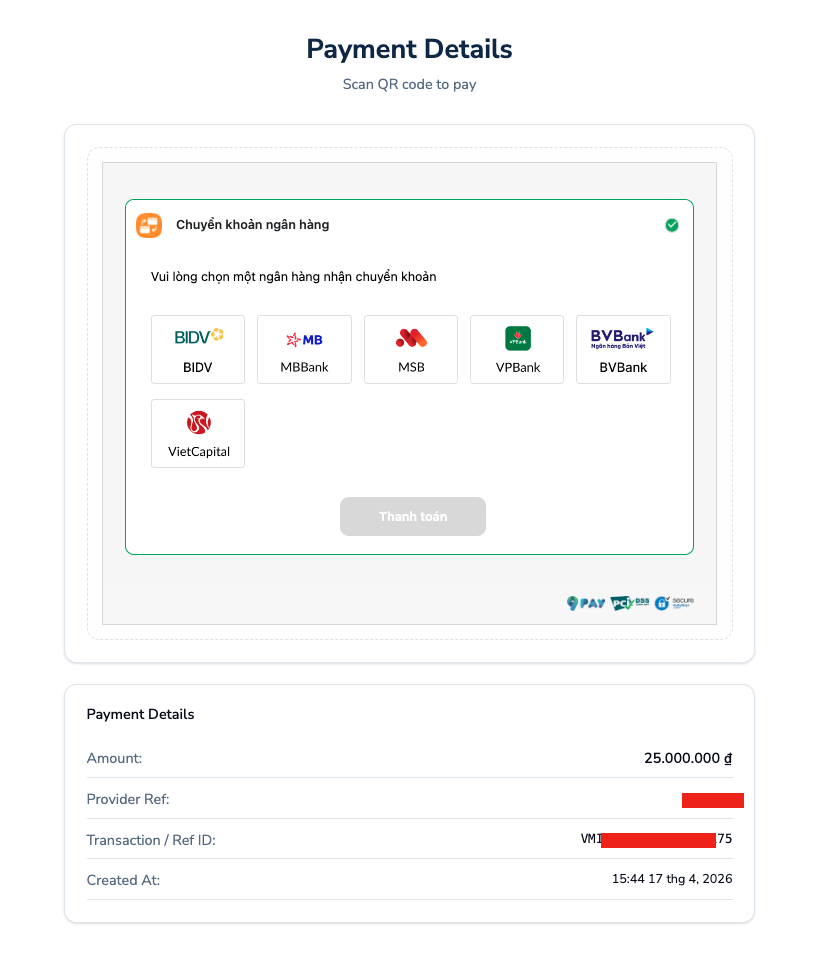
VietMap supports many Vietnamese banks for the backup if your one or more banks are not available in the payment time. If you have trouble with the payment, please contact us at Zalo OA
4. Complete the Transfer
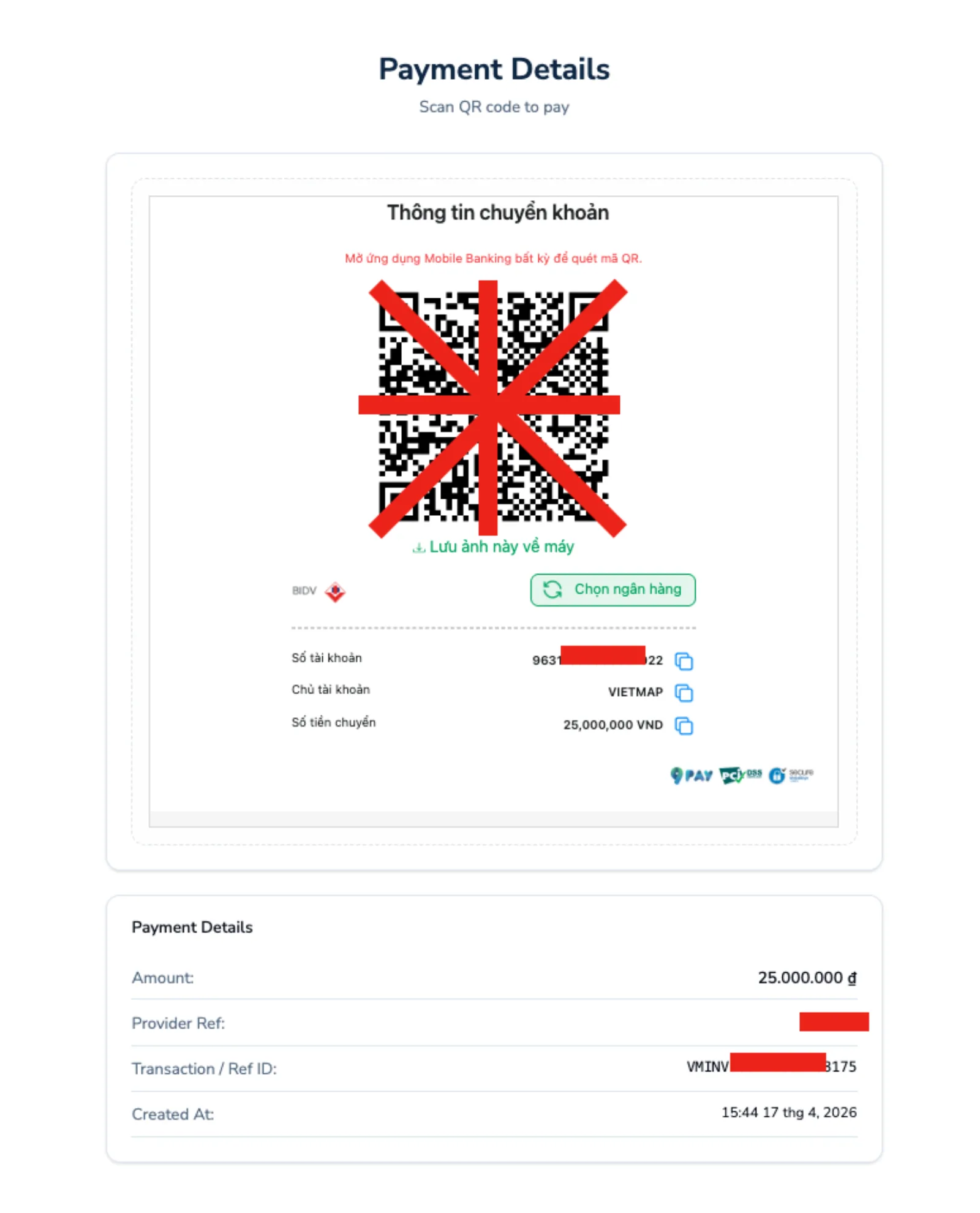
After selecting a bank, a QR code will be displayed. Use your banking app to scan the code and confirm the transfer amount.
Tip
The QR code contains the exact transfer amount and reference code. Do not modify the amount or description when confirming the payment in your banking app, as this may cancel processing.
Once the transfer is confirmed by the bank, your account balance will be updated automatically — usually within a few minutes.
5. View & Download Invoice
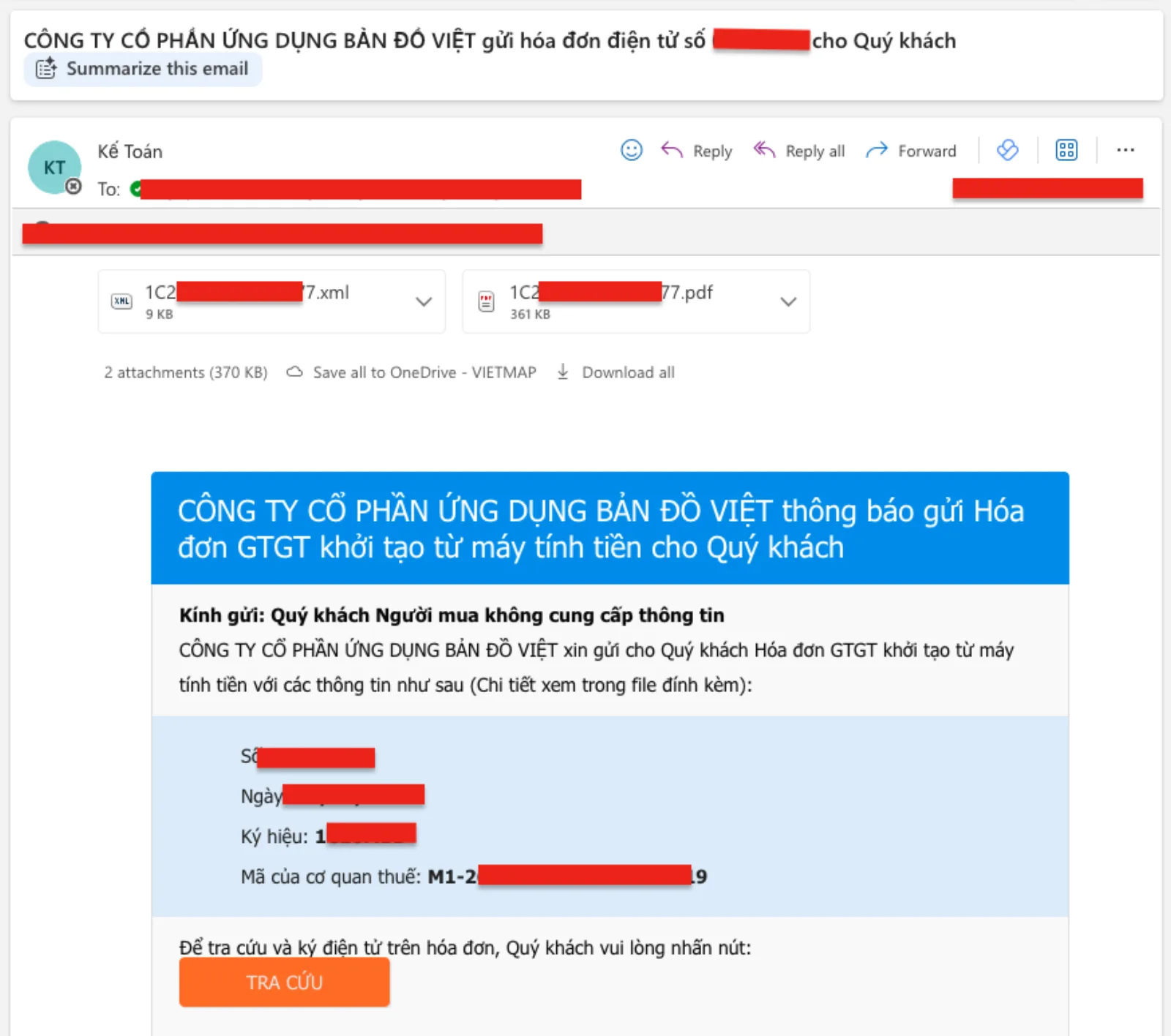
After a payment is processed, the invoice will appear in the Payment History section. You can view the invoice details or download it as a PDF.
One invoice is sent to your registered email address for each successful payment. If you need additional copies or have any issues with your invoice, please contact us at Vietmap Solutions Zalo OA
6. Update VAT Information
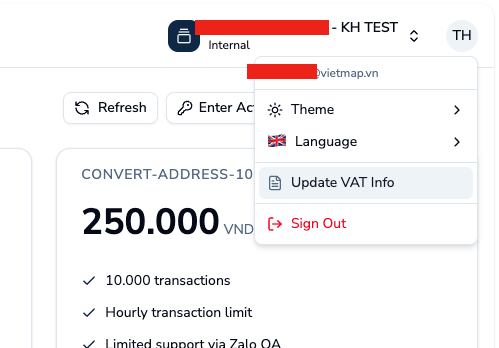
You can update VAT information at any time for later payments from the User icon -> Update VAT Info section in the top right side of the Console.
Fill in the required fields and click Save to apply the changes. Updated information will be used for future invoices:
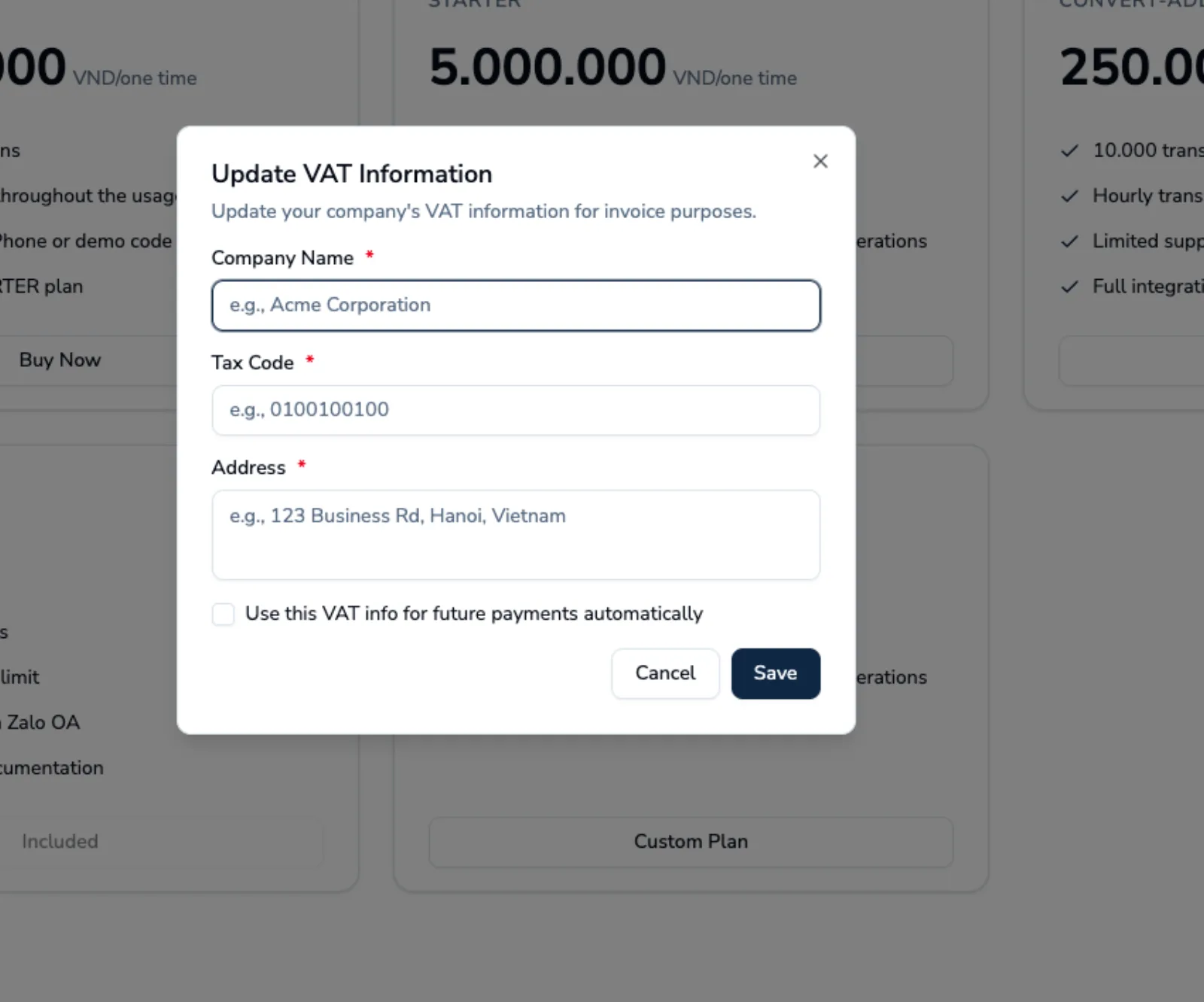
| Field | Description |
|---|---|
| Company Name | Legal name of your organization |
| Tax Code | Vietnamese tax identification number |
| Address | Registered business address |
| Email address to receive the invoice |
Click Save to apply the changes. Updated information will be used for all future invoices.
Note
VAT invoices are issued after payment is confirmed. Contact Zalo OA or maps.info@vietmap.vn if you need an invoice reissued with corrected information.